The Fonts Store
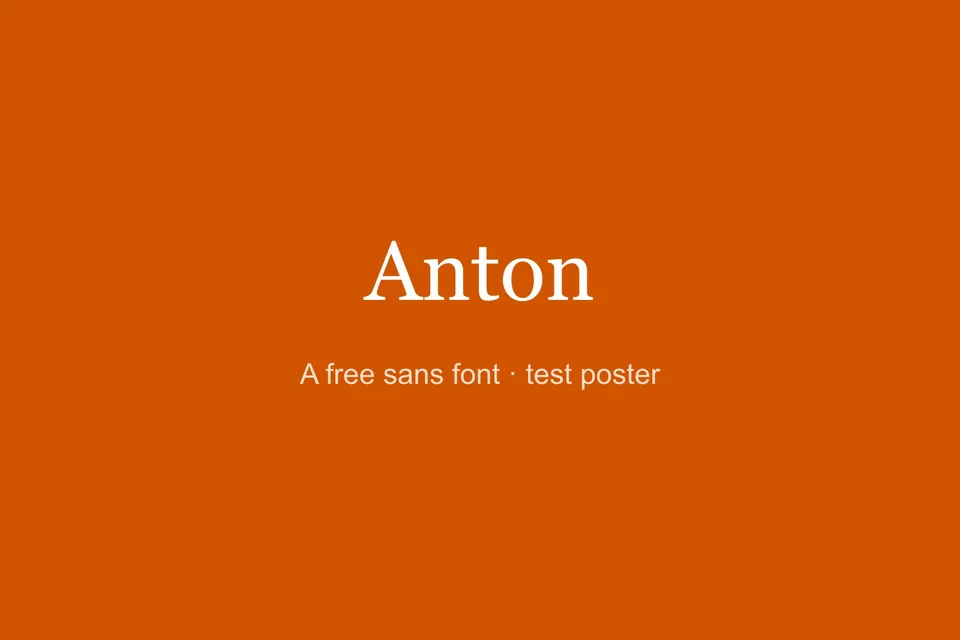
Anton
Anton is a clean sans serif built for clarity. It reads well on screens and in print, which makes it a reliable choice for websites, apps, branding and everyday design.
- Category
- Sans serif
- Styles
- 1
- Released
- v2.116 · 2026
Try before you buy
Type tester
Anton
Glyph peek
- A
- B
- C
- D
- E
- F
- G
- H
- I
- J
- K
- R
- S
- Q
- a
- b
- c
- d
- e
- f
- g
- k
- m
- r
- s
- y
- &
- ?
- !
- 0
- 1
- 2
- 3
- €
- ß
166 languages
Show the listHide the list
Afrikaans · Aghem · Akan · Albanian · Anii · Asturian · Asu · Azerbaijani · Bafia · Bambara · Basaa · Basque · Bemba · Bena · Bosnian · Breton · Catalan · Cebuano · Central Atlas Tamazight · Chiga · Colognian · Cornish · Croatian · Czech · Danish · Duala · Dutch · Embu · English · Esperanto · Estonian · Ewe · Ewondo · Faroese · Filipino · Finnish · French · Friulian · Fula · Ga · Galician · Ganda · German · Gusii · Hausa · Hawaiian · Hungarian · Icelandic · Igbo · Inari Sami · Indonesian · Interlingua · Interlingue · Irish · Italian · Javanese · Jola-Fonyi · Kabuverdianu · Kabyle · Kaingang · Kako · Kalaallisut · Kalenjin · Kamba · Kikuyu · Kinyarwanda · Koyra Chiini · Koyraboro Senni · Kurdish · Kuvi · Kwasio · Kʼicheʼ · Lakota · Langi · Latvian · Ligurian · Lingala · Lithuanian · Lombard · Low German · Lower Sorbian · Luba-Katanga · Luo · Luxembourgish · Luyia · Machame · Makhuwa · Makhuwa-Meetto · Makonde · Malagasy · Malay · Maltese · Manx · Māori · Masai · Meru · Metaʼ · Morisyen · Mundang · Nama · Ngiemboon · Ngomba · Nheengatu · Nigerian Pidgin · North Ndebele · Northern Sami · Northern Sotho · Norwegian Bokmål · Norwegian Nynorsk · Nuer · Nyankole · Occitan · Oromo · Piedmontese · Polish · Portuguese · Prussian · Quechua · Romanian · Romansh · Rombo · Rundi · Rwa · Samburu · Sango · Sangu · Sardinian · Scottish Gaelic · Sena · Shambala · Shona · Sicilian · Silesian · Slovak · Slovenian · Soga · Somali · Southern Sotho · Spanish · Sundanese · Swahili · Swedish · Swiss German · Taita · Tasawaq · Teso · Toki Pona · Tongan · Tswana · Turkish · Turkmen · Upper Sorbian · Uzbek · Venetian · Vietnamese · Vunjo · Walser · Welsh · Western Frisian · Wolof · Xhosa · Yangben · Yoruba · Zarma · Zhuang · Zulu
Pairs well with
You might also like
All fonts →- 12 font families
- 4 licence types
- Instant download
- Licence certificate with every order
From the journal
Read about Anton
Font guides · 27 Nov 2026 · 1 min readHow to use script fonts in Canva and CricutJoined-up letters, swashes and clean cuts: getting the most from a script font in the apps crafters love.
Font guides · 27 Nov 2026 · 1 min readA short history of type, from metal to digitalSerif, sans, script and display: where the kinds of type we use today come from.
Font guides · 27 Nov 2026 · 1 min readWhich font licence do I need?Desktop, web, app, logo: a plain-words guide to choosing the right licence for your project.
Licensing
Which licence do I need?
Pick by how you'll use Anton. You can add more licences to the same order.
- Making logos, posters, print, social posts or videosLogos, posters, print, social images, video titles, documents.Desktop · from $29
- Showing it as live text on your websiteCounted in page views per month across all your sites.Web · from $29
- Building it into an app, game or e-bookiOS, Android, Windows or Mac apps, e-readers.App · from $58
- Selling products where the lettering is the designT-shirts, mugs, stickers, greeting cards, packaging runs.Product · from $44
- Film, TV and streamingTitles, credits and on-screen graphics in broadcast, film or streaming.Ask for a quote for Film, TV and streaming
- A logo you'll trademark, or exclusive useRegistering a logo set in the font, or keeping it for your brand alone.Ask for a quote for A logo you'll trademark, or exclusive use
- A large company or many usersOne licence for a whole organisation, beyond the sizes listed.Ask for a quote for A large company or many users
Questions
Good to know
Which licence do I need?
It depends on what you're making. A desktop licence covers installing the font on your computer for print, documents and images; websites, apps, video and large products usually need their own licence. Each licence and what it allows is explained on the Licences page.
Can I use the fonts for commercial work?
Yes, with the right licence. Personal and commercial use are covered by the licence you choose; the Licences page explains each one.
Which file formats do I get?
The files you download are listed on each font's page, usually OTF and TTF for your computer and WOFF/WOFF2 for websites.
How do I install a font?
On Windows, right-click the OTF or TTF file and choose Install. On a Mac, double-click it and press Install Font. Then restart the app you want to use it in. The Font help page has step-by-step help for Canva, Cricut, Word and Adobe apps.
Font help
How to use Anton
Install it on a Mac
- Unzip the download.
- Double-click the .otf file (or .ttf when there is no .otf).
- Font Book opens: click Install.
- Quit and reopen the app you design in, so it sees the new font.
Install one format of a font, OTF or TTF, not both: two copies of the same font can clash.
Install it on Windows
- Unzip the download (right-click it, then Extract All). Fonts can't be installed from inside a zip file.
- Right-click the .otf file (or .ttf) and choose Install for all users, so every app finds it. Plain Install works for most apps too.
- Close and reopen the app you design in.
Ligatures and alternates in Canva
Uploading your own fonts needs Canva Pro or Teams: open Brand → Brand fonts → Upload a font and pick the .otf or .ttf file. Upload only fonts your licence covers.
Canva shows a font's automatic ligatures and joined letters, but it has no panel for choosing alternates. To use an alternate letter, copy it from a character map app (Character Map on Windows, Font Book on a Mac) and paste it into your text box. This works when the alternates have their own codes, which many script fonts include (often called PUA).
Ligatures and alternates in Illustrator and Photoshop
Illustrator: select a letter and a small pop-up shows its alternates right under it; click one to swap. For every glyph, open Window → Type → Glyphs. Switch ligatures, swashes and stylistic sets on or off in Window → Type → OpenType.
Photoshop: open Window → Glyphs, select a letter in your text and double-click the alternate you want. The OpenType buttons (ligatures, swashes, stylistic sets) are in the Properties panel, under Character.
Ligatures and alternates in Microsoft Word
Select your text and open Font (Ctrl+D on Windows; Format → Font on a Mac), then the Advanced tab. Under OpenType features, set Ligatures to Standard and Contextual (or All), tick Use Contextual Alternates, and try the Stylistic sets.
Word has no glyphs panel. For one alternate letter, use Insert → Symbol → More Symbols (Windows) or Insert → Advanced Symbol (Mac), choose the font and pick the letter.
Ligatures and alternates in Cricut Design Space
Install the font on your computer first, then restart Design Space: it lists the font under System fonts.
Design Space doesn't switch on ligatures or alternates. To use an alternate letter, copy it from a character map app (Character Map on Windows, Font Book on a Mac) and paste it into your text box. For script lettering, close up the Letter Space until the letters touch, then select the text and click Weld, so it cuts as one piece.
Made by
The Fonts Store
MJ Test Type makes fonts for real projects: brands, packaging, print and the screen.
Need something more?
A licence for bigger projects.
A big brand, broadcast, many users, or a use the licences don't cover? Ask for a custom licence and get a quote.